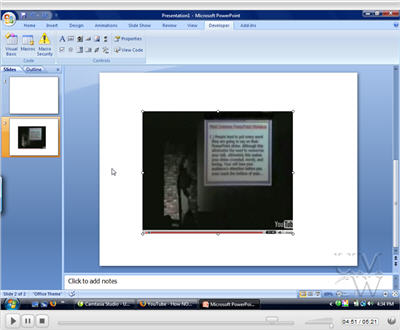
It’s the start of a new semester and that means that the senior seminars get under way. Those classes are designated “speaking intensive”, and so they will have a presentation component to them. One of the popular questions I get asked is how do I embed video in my presentation. Well, you certainly can insert a video that you have already on your hard drive, but with YouTube being such a popular resource, I thought I’d share a screencast about embedding YouTube videos in a PowerPoint 2007 slide. There is also a YouTube video for doing the same thing in PowerPoint 2000/2003. Keep in mind that these techniques require a live connection to the Internet, otherwise your slide will be blank.
UPDATE: People have been reporting that there is no “Custom” field any more that calls up the Movie URL dialog box. Well don’t worry about that. Just place the modified YouTube URL in the “Movie” field in the main “Properties” dialog window. I need to update the video to reflect that.
One further note is that a similar technique is used if you want to embed a Flash animation (a .swf file). Check out the Inserting Flash Movies Into PowerPoint screencast.


13 Responses
~~~~~~~~~~~~~~~~~~~~~~~~~~~~~~~~~~~~~~~
Just follow these steps, and you’ll be able to show all your good videos on powerpoint presentation:
1- download the youtube video with “zillatube”. Get the program from http://www.zillatube.com
2- using zillatube, convert it into mpg video format.
3- final step, a simple step, just insert(using the file menu above the powerpoint program) the mpg video into power point.
Just 3 simple steps, and you can present your powerpoint with videos without online at all.
all the best to your presentation.
~~~~~~~~~~~~~~~~~~~~~~~~~~~~~~~~~~~~~~~
Andy,
Got as far as copying the UTube URL, but the Shockwave property pages dialogue that you you has a “custom” field – mine doesn’t, so it ended there.
Where did your “custom” field come from?
Colin – Just paste the modified YouTube URL in the “Movie” field in the “Properties” dialog window. I don’t know where the “Custom” field went, but it isn’t necessary. I need to update the video to reflect the change.
How do you ‘modify’ the youtube URL ?
Elise,
As shown in the screencast, you modify the youtube URL that you enter in the “Movie” field in the Properties box for the Shockwave Flash Object. For example if the URL is:
http://www.youtube.com/watch?v=Lm5Tm9aJljQ
You change it to:
http://www.youtube.com/v/Lm5Tm9aJljQ to make it work in PowerPoint as a flash object
5. Your Use of Content on the Site
In addition to the general restrictions above, the following restrictions and conditions apply specifically to your use of content on the YouTube Website.
The content on the YouTube Website, except all User Submissions (as defined below), including without limitation, the text, software, scripts, graphics, photos, sounds, music, videos, interactive features and the like (“Content”) and the trademarks, service marks and logos contained therein (“Marks”), are owned by or licensed to YouTube, subject to copyright and other intellectual property rights under the law. Content on the Website is provided to you AS IS for your information and personal use only and may not be downloaded, copied, reproduced, distributed, transmitted, broadcast, displayed, sold, licensed, or otherwise exploited for any other purposes whatsoever without the prior written consent of the respective owners. YouTube reserves all rights not expressly granted in and to the Website and the Content.
You may access User Submissions for your information and personal use solely as intended through the provided functionality of the YouTube Website. You shall not copy or download any User Submission unless you see a “download” or similar link displayed by YouTube on the YouTube Website for that User Submission.
Just google search Step by Step Guide on How to Convert and Embed YouTube in PowerPoint, you will find as many solutions as possible
Thanks Hopperdarelly. And with that comment I will close comments on this post.